
Fingerprint editor
Every Maskifi profile has a fingerprint. You can view and edit it at any time from the profile form. The editor lets you choose, for each parameter, whether to use a Custom value you set, let the attribute follow the Real device value, or derive it automatically from the proxy IP.
Opening the editor
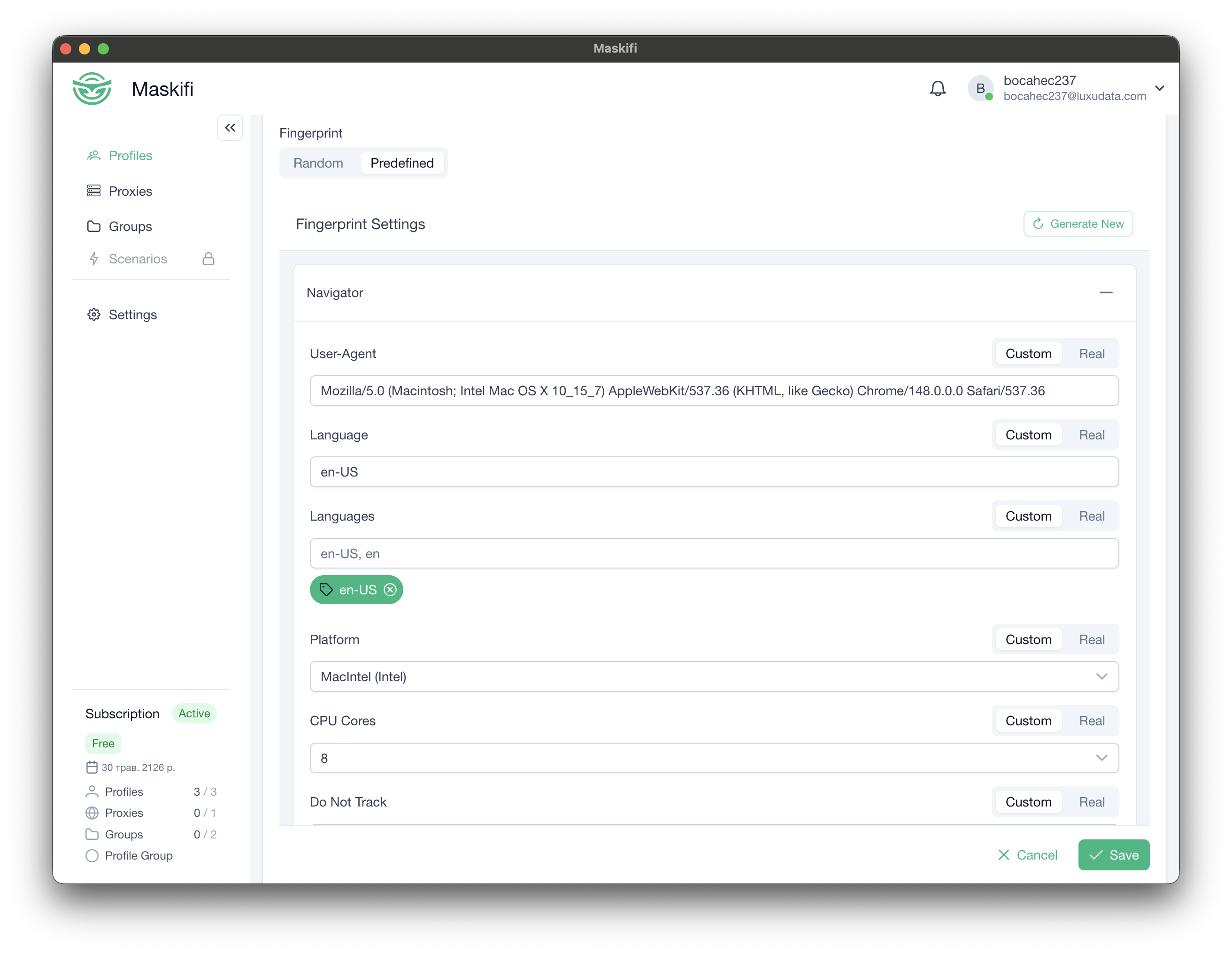
Open the Fingerprint editor by opening a profile's edit form (three-dot menu → Edit, or click the profile name). The editor appears as a panel inside the form. Fingerprint fields are grouped into collapsible sections. Click a section header to expand or collapse it.
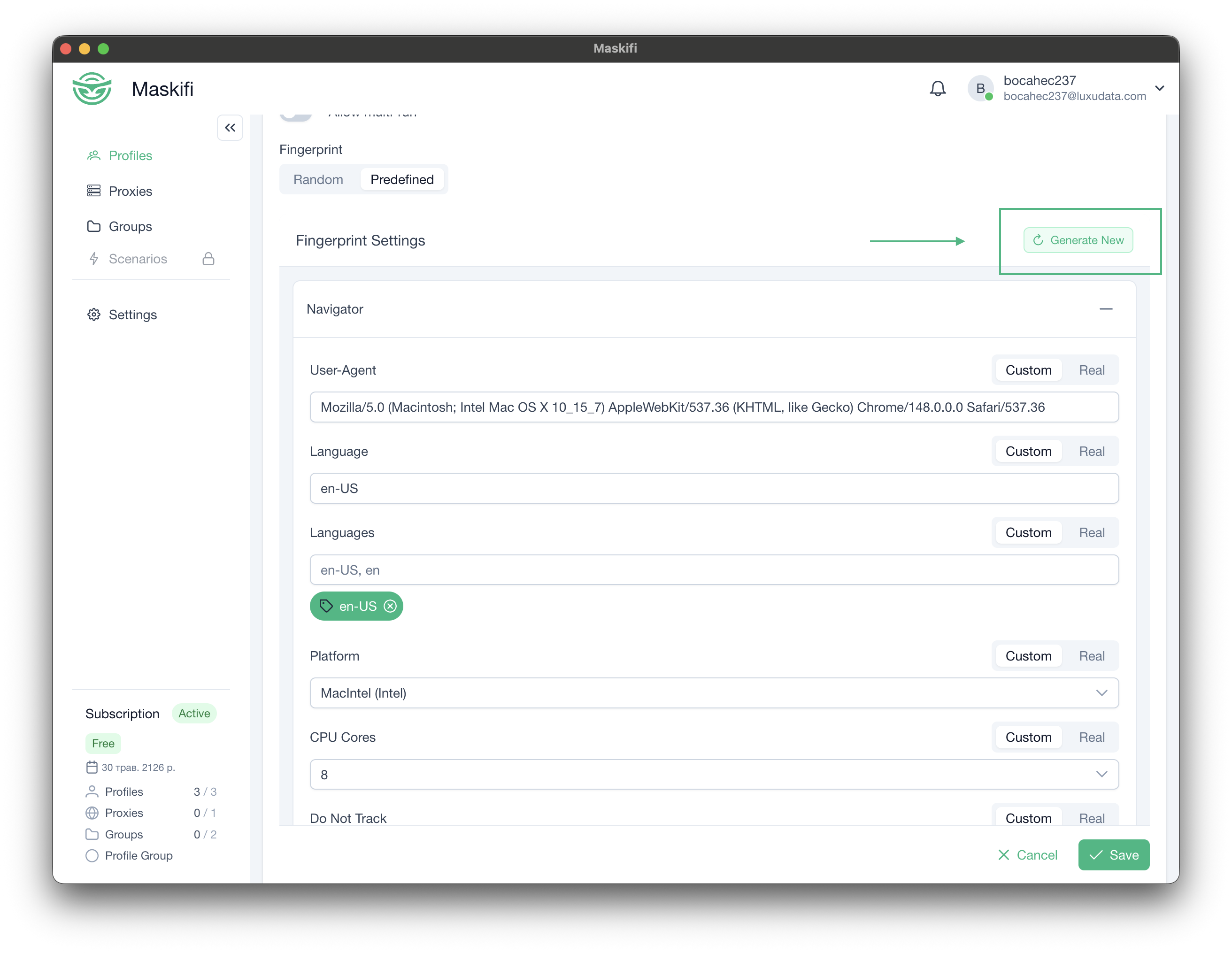
The "Generate New" button
At the top of the editor is a Generate New button. Clicking it discards the current fingerprint and creates a fresh, statistically coherent fingerprint. All auto-generated values (WebGL capability tables, codec lists, navigator identity strings, canvas noise seed) are refreshed together so the new fingerprint is internally consistent.
Use this when you want a new identity for the profile without modifying individual fields. If you have pinned any fields to Custom mode, those values are preserved — regeneration only replaces fields that are not in Custom mode.
Field modes
Each editable parameter has a mode toggle next to its label. The available modes depend on the field:
| Mode | What it does |
|---|---|
| Custom | You set the value explicitly. The value is stored in the profile and applied when the browser launches. The input field is active. |
| Real | No override is applied; the browser uses the host device's actual value for that attribute. The input field is greyed out. |
| By IP | The value is derived from the proxy IP at launch time. Available only for Timezone, Geolocation, and WebRTC IP. Keeps location-related fields consistent with the proxy without manual configuration. |
| Block | The browser denies permission requests for this attribute. Available for Geolocation: the page receives a denied error instead of coordinates. |
| Disabled | The feature is turned off at the browser level. Available for WebRTC: no WebRTC connections can be made, eliminating the IP-leak risk entirely. |
When you switch a field from Custom to any other mode, the stored value is cleared from the profile. When you switch back to Custom, you must re-enter a value or use the Generate New button.
Editable sections
Navigator
Contains the browser and operating system identity fields that web pages read most frequently.
| Field | Modes | Description |
|---|---|---|
| User-Agent | Custom, Real | The browser identification string sent to every website. Changing it also updates the outgoing request header automatically so the two values always match. |
| Language | Custom, Real | The primary language tag (e.g. en-US). |
| Languages | Custom, Real | The full ordered list of accepted languages. Enter one tag at a time; they are saved in priority order. |
| Platform | Custom, Real | The operating system identifier. Options: Win32, Win64, MacIntel (Intel), MacArm64 (Apple Silicon), Linux x86_64, Linux i686, Linux aarch64. Must match the operating system claimed in the User-Agent. |
| CPU Cores | Custom, Real | The number of logical CPU cores reported to web pages. Options: 2, 4, 6, 8, 12, 16. |
| Do Not Track | Custom, Real | Whether the browser sends the Do Not Track preference signal. Options: Enabled (1), Disabled (0), Not Set. |
| Touch Points | Custom, Real | The maximum number of simultaneous touch contacts supported. Options: 0 (no touch), 1, 5, 10. Use 0 for a non-touch desktop. |
Screen
Controls screen and window dimensions. All related window size values are updated together when Resolution changes, keeping available height, outer window size, and inner viewport consistent.
| Field | Modes | Description |
|---|---|---|
| Resolution | Custom, Real | Screen width and height. Presets from 1280×720 to 3840×2160. Changing this updates all related window dimensions automatically. |
| Device Pixel Ratio | Custom, Real | The ratio of physical pixels to CSS pixels. 1 = standard display; 1.25, 1.5, 2 = HiDPI; 3 = very high-density display. |
| Color Depth | Custom, Real | Color bit depth reported to web pages. Options: 24 bit (standard), 30 bit, 32 bit. |
WebGL
Controls the GPU identity reported through the graphics API.
| Field | Modes | Description |
|---|---|---|
| WebGL Vendor | Custom, Real | The GPU manufacturer name (e.g. Google Inc. (NVIDIA)). |
| WebGL Renderer | Custom, Real | The specific GPU model and driver description (e.g. ANGLE (NVIDIA GeForce GTX 1060 6GB...)). |
Additional GPU capability data — extension lists, shader precision tables, context attributes — is generated automatically and displayed read-only in the Technical Data section.
Timezone & Geolocation
Location fields are the most common source of inconsistencies between fingerprint and proxy. The By IP mode eliminates this risk by deriving the values from the proxy at launch time.
| Field | Modes | Description |
|---|---|---|
| Timezone | By IP (default), Custom, Real | The timezone name used for date/time calculations. By IP derives it from the proxy. Custom lets you pick from a searchable list of all standard timezone names. |
| Geolocation | By IP (default), Custom, Block | Latitude, longitude, and accuracy reported when a page requests location. By IP approximates coordinates from the proxy. Block denies any location request — no coordinates are returned. Custom lets you enter exact coordinates and accuracy in metres. |
WebRTC
| Field | Modes | Description |
|---|---|---|
| WebRTC IP | By IP (default), Custom, Disabled | The IP addresses exposed by WebRTC — both public (IPv4 and IPv6) and local network addresses. By IP mirrors the proxy address. Custom lets you set specific IPv4 and IPv6 values. Disabled turns WebRTC off entirely, eliminating the leak at the cost of WebRTC-dependent features. |
Media & Fonts
| Field | Modes | Description |
|---|---|---|
| Media Devices | Custom, Real | The reported count of microphones, webcams, and speakers (each 0–10). Use Custom to set specific counts; use Real to reflect the host device's actual hardware. |
| Webcam Source | Real / Custom video / Disabled | Controls what the camera API returns when a page requests camera access. Real passes through the host camera. Custom video plays a Y4M video file you choose at launch time via a file picker. Disabled reports no camera. This toggle is independent of the Media Devices mode. |
| Fonts | Custom, Real | The list of font family names reported as installed. Enter fonts one at a time in the tag input. Should reflect fonts realistic for the claimed OS and locale. |
Technical Data (read-only)
A collapsed section at the bottom of the editor showing auto-generated values: legacy navigator identity strings, HTTP request headers, supported audio and video codecs, and full GPU capability tables. These fields are part of the fingerprint and ensure internal consistency, but they cannot be edited directly. They are refreshed when you click Generate New.
Saving changes
Changes in the fingerprint editor are part of the profile form. Click Save at the bottom of the form to persist them. No change takes effect in a running browser session until the session is restarted.