
Creating & editing
Create a profile
- Open the Profiles view from the sidebar.
- Click the + button in the top-right toolbar.
- Fill in the form fields (see below).
- Click Save (or Create).
If your subscription limit has been reached, the form will not open and an upgrade prompt will appear instead.
Form fields
Name (required) : Up to 64 characters. Used to identify the profile in the list.
Description : Free-text notes about the profile. Visible in the list via the comment indicator.
Tags : Comma-separated labels. You can type a new tag or pick from existing ones.
Account type : Facebook, Google, TikTok, or Other. Selecting a type auto-fills the Start URL and default bookmarks. You can override these.
Browser engine : Firefox (Maskifox) or Chrome. This determines which engine runs the profile. You can change engine later via engine migration.
Operating system : Windows, macOS, or Linux. Controls the OS fingerprint. A warning appears if the selected OS differs from your current machine, because some native features (camera, fonts) behave differently.
Proxy : Choose a proxy from your proxy list. The field is optional — you can add or change the proxy later. If you launch a profile without a proxy, a dialog asks whether to assign one before launching.
Group : Assign the profile to a group for filtering. Click the + next to the dropdown to create a new group inline.
Start URL : The page that opens when the profile launches. Left blank it uses the engine default.
Initial cookies : A cookie file (or pasted text) to load into the profile. Optional — cookies can also be imported later from the row menu.
Bookmarks : One URL per line. Pre-populates the browser's bookmarks bar on first launch.
Allow multirun : When enabled, other team members can launch the same profile simultaneously on different devices. Off by default.
Profile count (create mode only) : Number of profiles to create with these settings in one go (up to 100). Each profile gets the same base settings but a fresh fingerprint.
Fingerprint mode : Random generates a coherent fingerprint automatically. Predefined opens the fingerprint editor so you can inspect or override individual parameters.
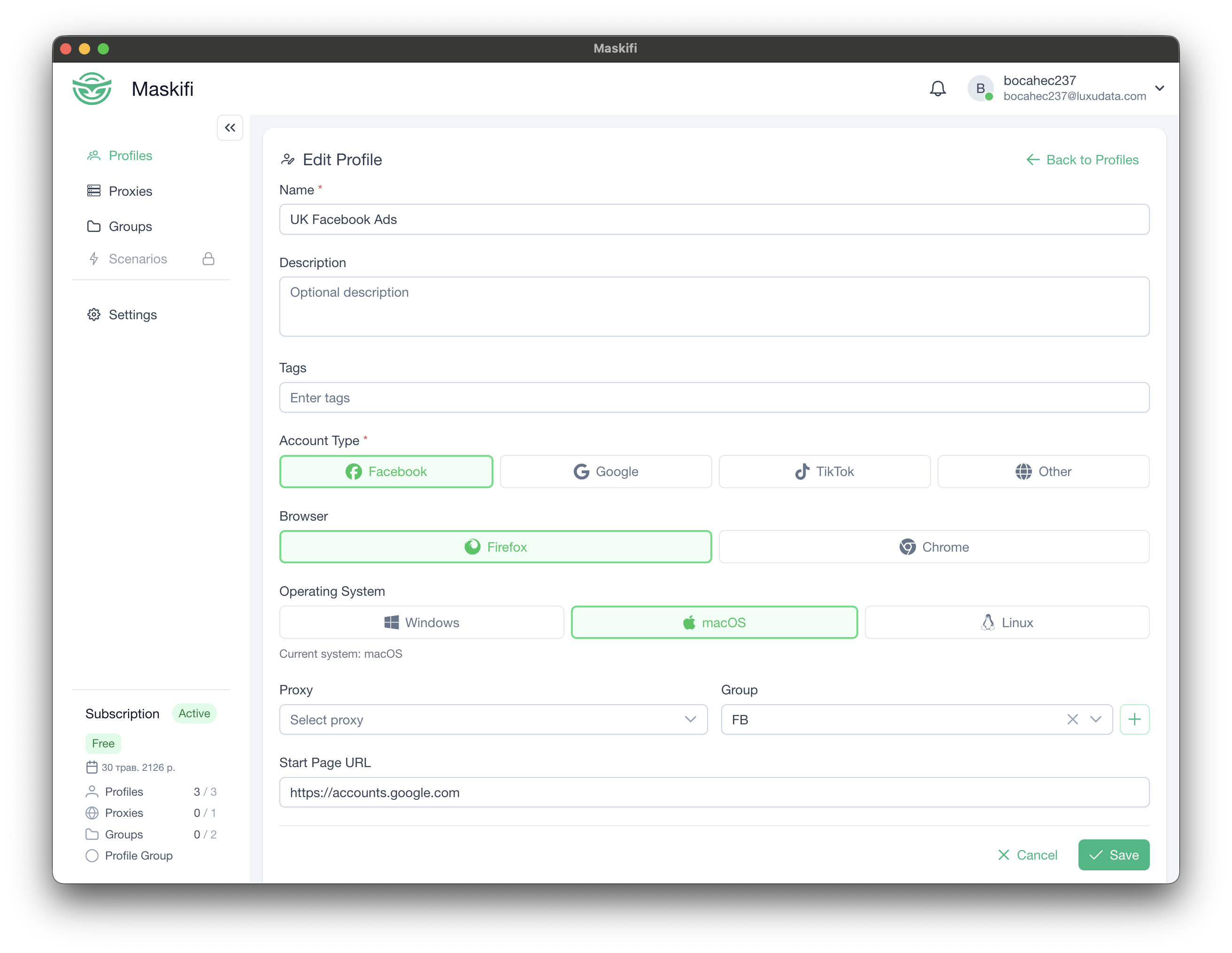
Edit a profile
- In the Profiles list, open the three-dot row menu for the profile.
- Click Edit.
- Change whichever fields you need.
- Click Save.
You cannot edit a profile while it is running. The edit option is disabled in the row menu for active profiles.
Note: Changing the engine in edit mode is not the right approach — use engine migration instead, which also transfers your cookies and bookmarks to the new engine.