
Installation
Maskifi is a desktop application available for macOS and Windows. This page walks you through downloading and installing the app for the first time.
System requirements
Maskifi runs on:
- macOS — Apple Silicon and Intel
- Windows — 64-bit
No browser extensions or additional runtimes are required. The Maskifox browser engine is bundled with the app.
Download
- Go to maskifi.app and click Download.
- Select the installer for your operating system.
- Save the file to your Downloads folder.

Install on macOS
- Open the downloaded
.dmgfile. - Drag the Maskifi icon into your Applications folder.
- Eject the disk image.
- Open Applications and double-click Maskifi to launch it.
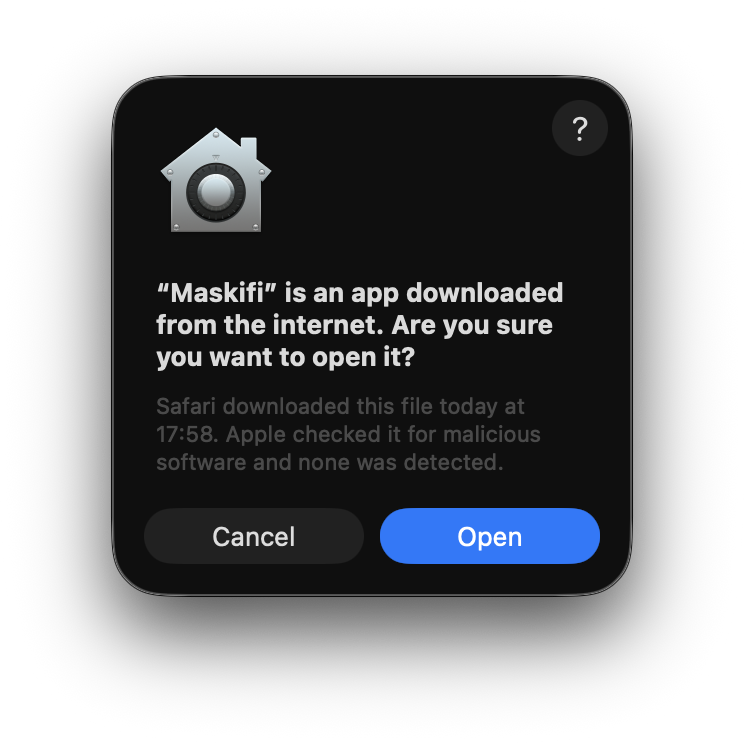
First-launch security prompt — macOS may show a warning because the app was downloaded from the internet. If prompted, open System Settings → Privacy & Security and click Open Anyway.
Install on Windows
- Run the downloaded
.exeinstaller. - Follow the on-screen steps and accept the licence agreement.
- Click Install, then Finish when complete.
- Maskifi will open automatically, or you can launch it from the Start menu or desktop shortcut.
Windows SmartScreen — Windows may display a SmartScreen warning on first run. Click More info → Run anyway to proceed.
What happens next
Once Maskifi opens you will see the sign-in screen. Continue to Creating your account to register, or sign in if you already have an account.