
Settings
Open Settings by clicking Settings in the sidebar (the gear icon at the bottom). The screen is organized into tabs. Which tabs are visible depends on your role and plan.
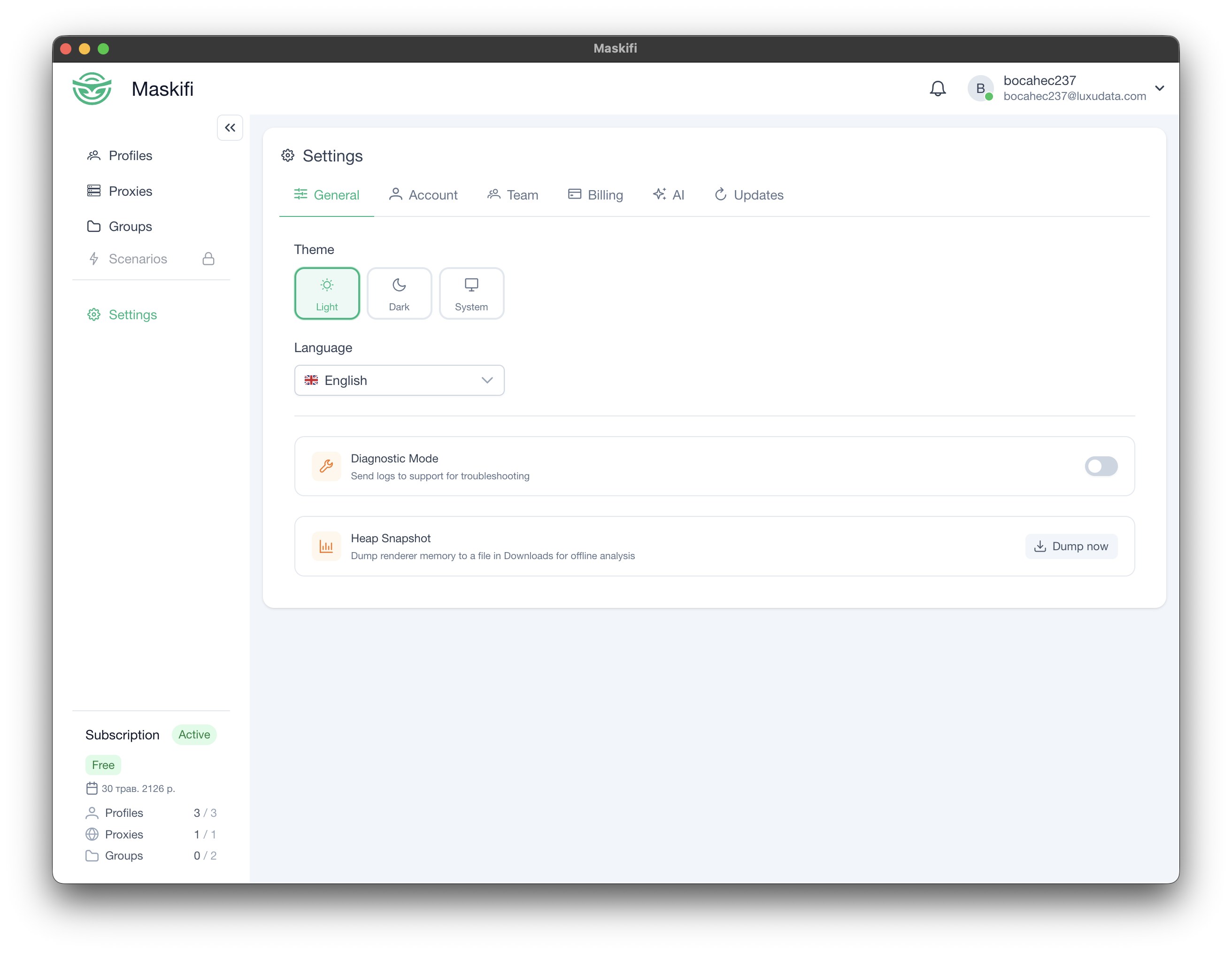
General tab
Always visible.
Theme
Choose between three display modes:
| Option | Behavior |
|---|---|
| Light | Light background, always |
| Dark | Dark background, always |
| System | Follows your operating-system appearance setting |
The active mode is highlighted. The selection takes effect immediately.
Language
A dropdown with English and Ukrainian. Changing the language updates all UI text instantly without a restart. The same choice is also available from the user profile menu.
Diagnostic mode
A toggle switch. When enabled, Maskifi logs additional detail to help diagnose issues. Disable it when you are done troubleshooting — verbose logging can have a minor performance impact.
Heap snapshot
A button that captures a memory snapshot for troubleshooting purposes. The saved file path is shown in a notification after completion. Most users will never need this; it is useful when working with the support team on a memory-related issue.
Local API (plan-gated)
A toggle switch that starts or stops a local API server, allowing external tools to control Maskifi. Visible only on plans that include the API feature.
Account tab
Always visible.
Profile
Displays your current avatar (or initials), username, and email address.
Username
An editable field for your display name. Click Save to apply the change.
Read-only. Changing your email is not available from within the app.
Change password
Three fields: current password, new password, and confirm new password. All three must be filled in. Passwords must match. Click Change password to submit.
Team tab
Visible only when you are a member of a non-personal team and have the required role.
Team name
An editable field for the team's display name. Click Save to apply.
Members
A paginated table of team members showing avatar, name, email (visible to owners and admins only), role tag, and an actions menu. Available actions per member depend on your role:
- Edit permissions — adjust what the member can do (create, edit, delete profiles etc.).
- Remove — revoke the member's access to the team.
Invitations
A section listing pending invitations. Owners and admins can cancel an outstanding invitation.
Invite member
A button that opens the invite dialog. Enter the invitee's email and optionally configure their initial permissions before sending.
API Keys tab
Visible when your subscription includes API access.
Allows you to create and revoke API keys used to connect external tools to Maskifi. Each key has a name for identification.
AI tab
Always visible.
Configure an AI provider API key so Maskifi can use AI assistance features (for example, in the automation scenario builder).
- Provider — toggle between Anthropic and OpenAI.
- API key — paste your key. The field is masked by default; click the eye icon to reveal it. The key is saved automatically when you change it.
- Test connection — checks whether the key is valid and the provider is reachable. A success or error message appears after the check.
Updates tab
Always visible.
Maskifox (Firefox engine)
Shows the currently installed Maskifox version. Two buttons:
- Check for updates — queries for a newer version. A message appears indicating whether an update is available or the installation is already current.
- Reinstall — wipes the local Maskifox binary and re-downloads it from scratch. Progress appears in the update banner at the bottom of the window. Useful if the engine is corrupted.
ChromeMask (Chrome engine)
Identical controls for the ChromeMask engine.
App update
- Version — shows the current Maskifi app version.
- Update channel — a dropdown to switch between Stable (default) and Beta. A warning message is shown when Beta is selected. Switching channels takes effect on the next update check.
- Check for updates — manually triggers an update check. A message shows the result.