
Assigning to profiles
A proxy must be assigned to a profile for Maskifi to route that profile's browser traffic through it. You can assign a proxy when creating or editing a profile, or change the proxy for many profiles at once.
Assigning during profile creation or editing
- Open Profiles → click + to create a new profile, or click a profile's ellipsis menu → Edit.
- In the profile form, find the Proxy field (a searchable dropdown).
- Type part of a proxy's name to filter the list, then select the proxy you want.
- To remove any proxy from the profile, clear the field (select No proxy).
- Click Save.
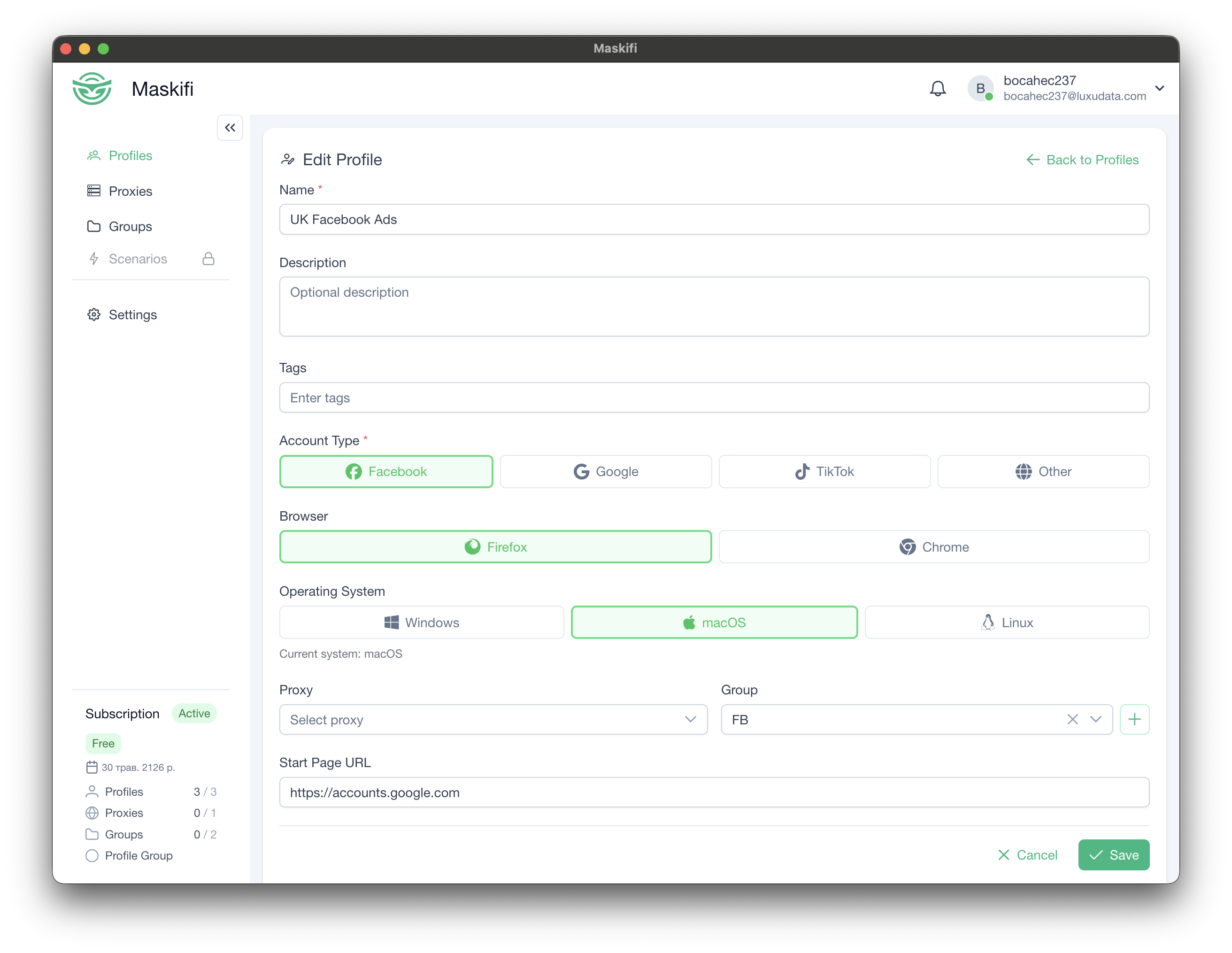
The proxy's name, type, and (after a test has been run) its IP are shown in the profiles table under the Proxy column.
Launching a profile with no proxy assigned
If you try to launch a profile that has no proxy, Maskifi shows a dialog offering two options:
- Select a proxy — pick one from your list. Maskifi saves the choice and launches the profile through that proxy.
- Launch without proxy — skip the proxy and open the profile using your real IP.
Changing proxy for multiple profiles (bulk action)
To reassign a proxy across many profiles in one step:
- Go to Profiles.
- Check the checkbox next to each profile you want to update. Use the header checkbox to select all profiles on the current page.
- In the bulk-action toolbar that appears at the top, click the Change proxy button (two arrows icon).
- In the dialog, select the proxy you want to apply from the dropdown, or choose No proxy to remove the current proxy from all selected profiles.
- Click Apply.
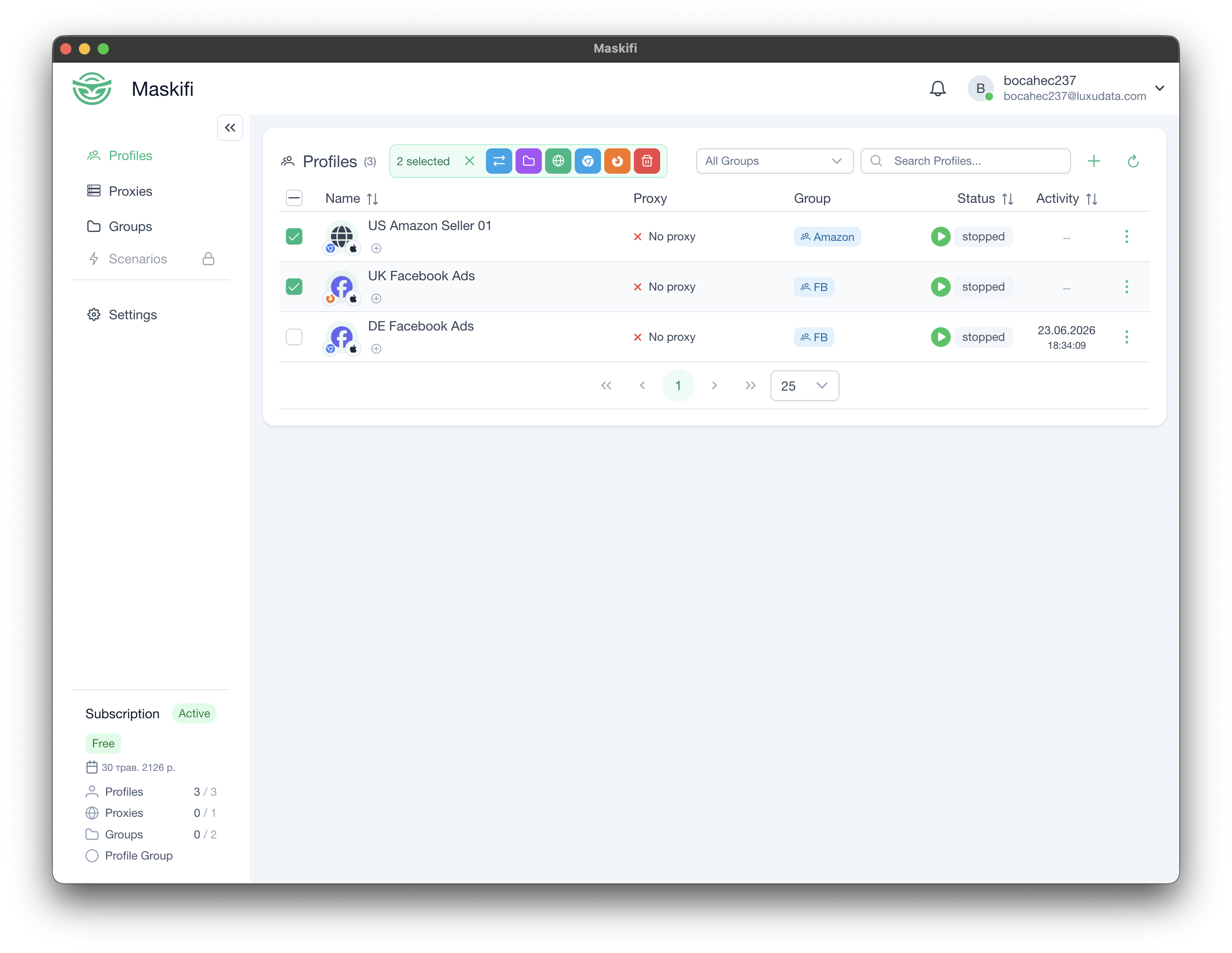
Maskifi updates all selected profiles. A success message confirms how many profiles were updated.
Proxy column in the profiles table
After assignment the profiles table shows a Proxy column with:
- The proxy's display name (truncated if long), linking to the proxy's entry.
- The last known test result for that proxy (green check or red X).
- The external IP and country flag if a test has been run.
Running a proxy test from the Proxies page updates the indicator in the profiles table automatically.