
Encryption & recovery phrase
Maskifi encrypts all profile data end-to-end. Encryption is mandatory — the app cannot function without it. This page explains what that means, how to set it up on first use, and how to unlock your data when you sign in on a new device or after reinstalling.
Why encryption is mandatory
Your browser profiles (fingerprints, cookies, proxies, automation) are sensitive. Maskifi encrypts them with keys that only you hold. This means Maskifi's servers store only encrypted data and cannot read your profiles even in the event of a server breach.
There is no way to disable or bypass encryption. If your encryption keys are lost and you do not have your recovery phrase, the encrypted data cannot be recovered by anyone, including Maskifi support.
Your recovery phrase
When you set up encryption for the first time, Maskifi generates a 24-word recovery phrase. This phrase is the only backup of your access to your data.
Save it somewhere safe and offline. You will need it whenever you:
- Sign in on a device where your keys are not in the OS keychain.
- Reinstall Maskifi.
- Switch to a new computer.
Warning: Anyone with your recovery phrase can decrypt your profile data. Treat it like a master password. Maskifi does not store a copy — if you lose it and your keys are not in the OS keychain, your encrypted data cannot be recovered.
Setting up encryption (first sign-in)
Encryption setup runs automatically the first time you sign in after verifying your email.
-
Maskifi generates a 24-word recovery phrase and displays it in a numbered grid.
-
Write down or copy all 24 words in order. Use the Copy button to copy the full phrase to your clipboard, then paste it into a password manager or write it on paper.
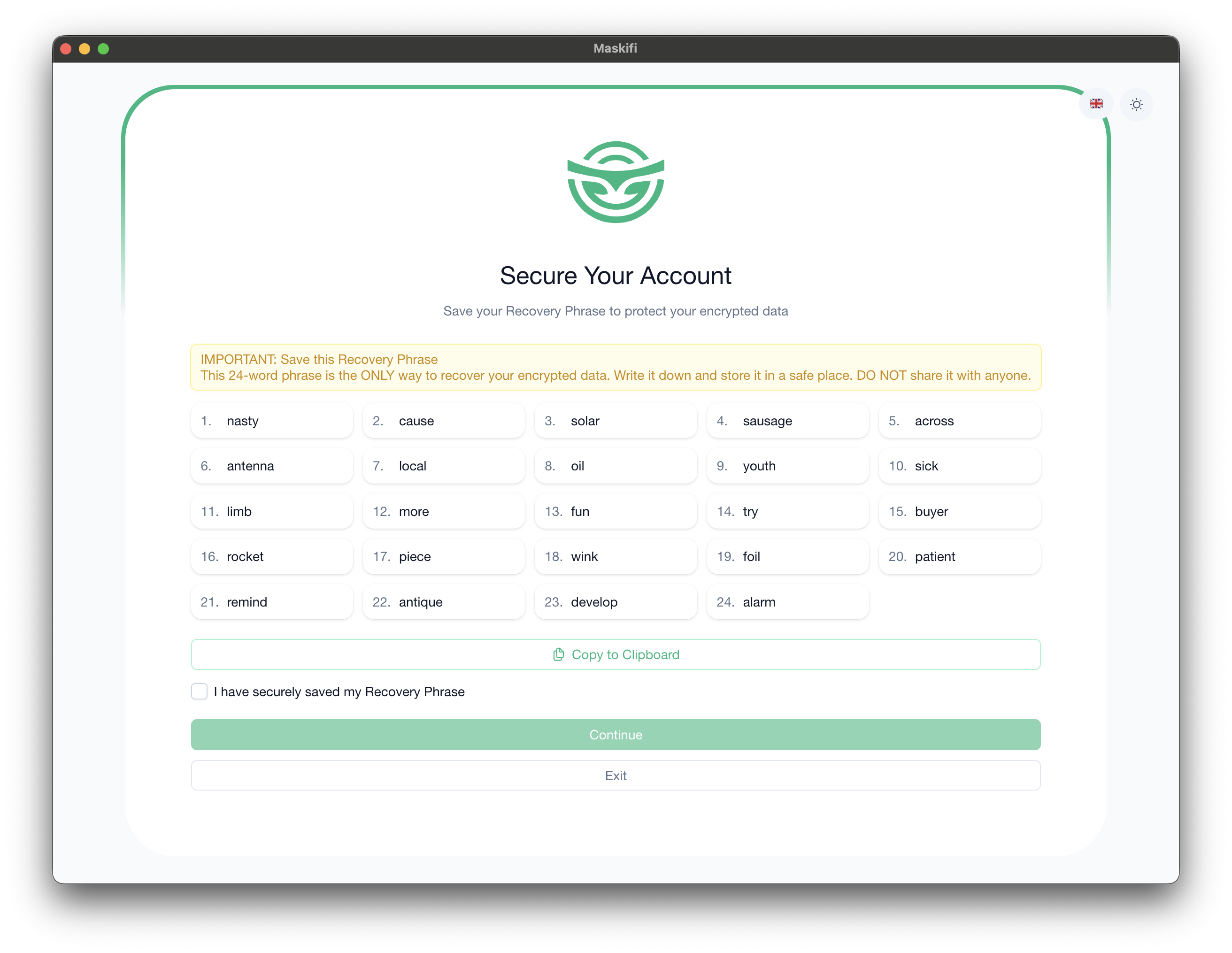
This is the only time your recovery phrase is displayed. There is no way to view it again in the app afterward. Make sure you save it before continuing.
-
Check the confirmation box to confirm you have saved the phrase.
-
Click Continue. A confirmation dialog appears — this is a final reminder that you cannot recover your data without this phrase.
-
Click Confirm in the dialog. Maskifi completes setup and takes you to the main app.
If you click Exit instead of Continue, you are signed out and returned to the sign-in screen. You can sign in again to restart the setup.
Entering your recovery phrase on sign-in
On each sign-in, Maskifi tries to unlock your data automatically using the access saved on this device. If that succeeds, you go straight to the main screen with no extra steps.
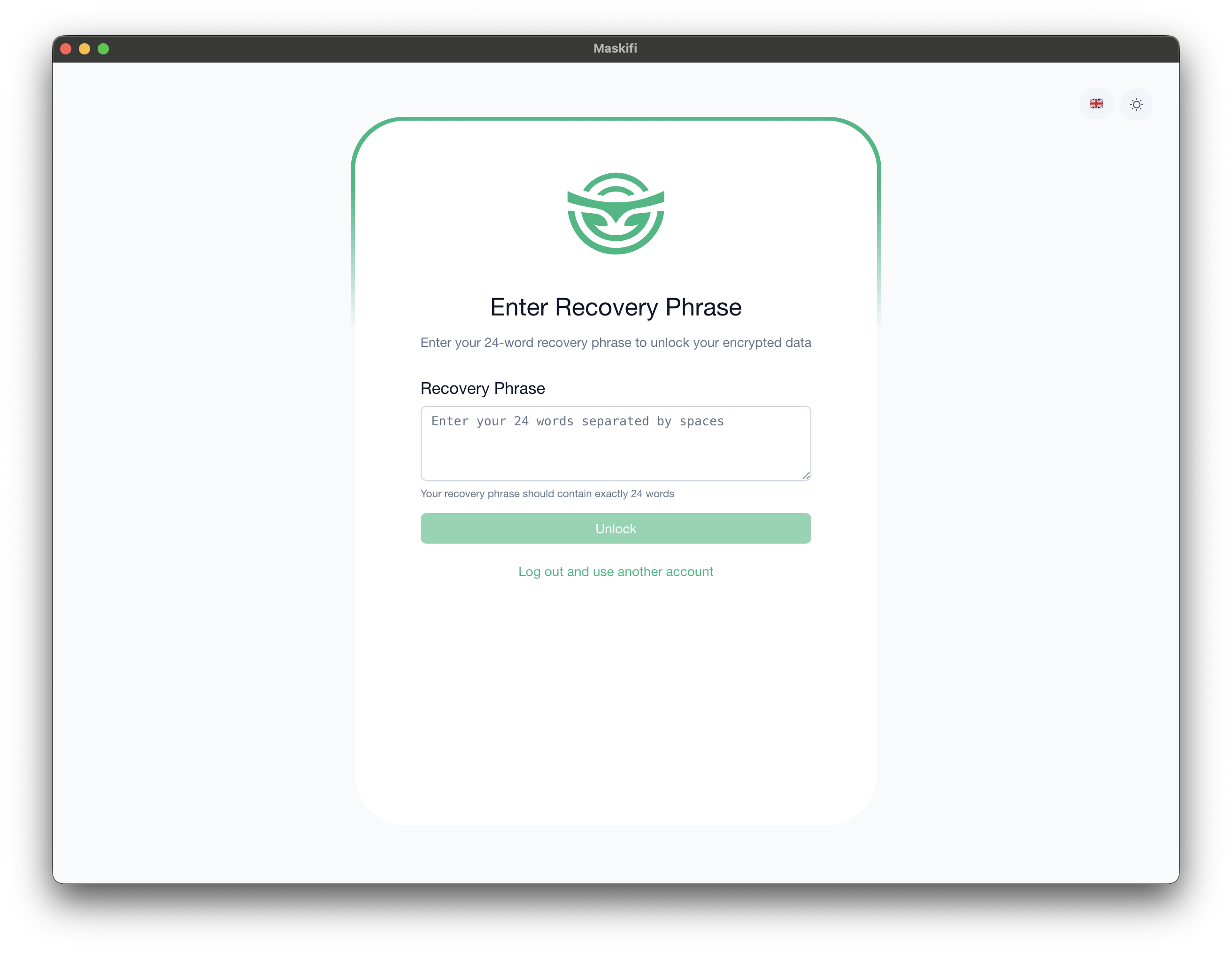
If automatic unlock is not possible (for example, on a new device or after reinstalling), Maskifi shows the Recovery phrase screen.
- Paste or type all 24 words of your recovery phrase into the text area, separated by spaces.
- Click Unlock.
- If the phrase is valid, your keys are restored and you are taken to the main app.
Three attempts — if you enter an incorrect phrase three times, Maskifi signs you out automatically. Sign in again to try again.
Remembered on this device
After a successful unlock, Maskifi saves your access in the operating system's secure storage so you do not need to enter your recovery phrase again on the same device.
Team encryption
If you work in a team, shared profiles are automatically accessible to all authorised team members. See Team encryption keys for details.