
Notifications
Maskifi delivers notifications when events require your attention: team invitations, incoming profile transfers, and similar activity. Notifications appear in two places — the bell in the top bar and the dedicated Notifications view.
Notification bell (top bar)
The bell icon (🔔) in the top bar shows a badge with the count of unread notifications (capped at 9 in the badge display). Click the bell to open a popover.
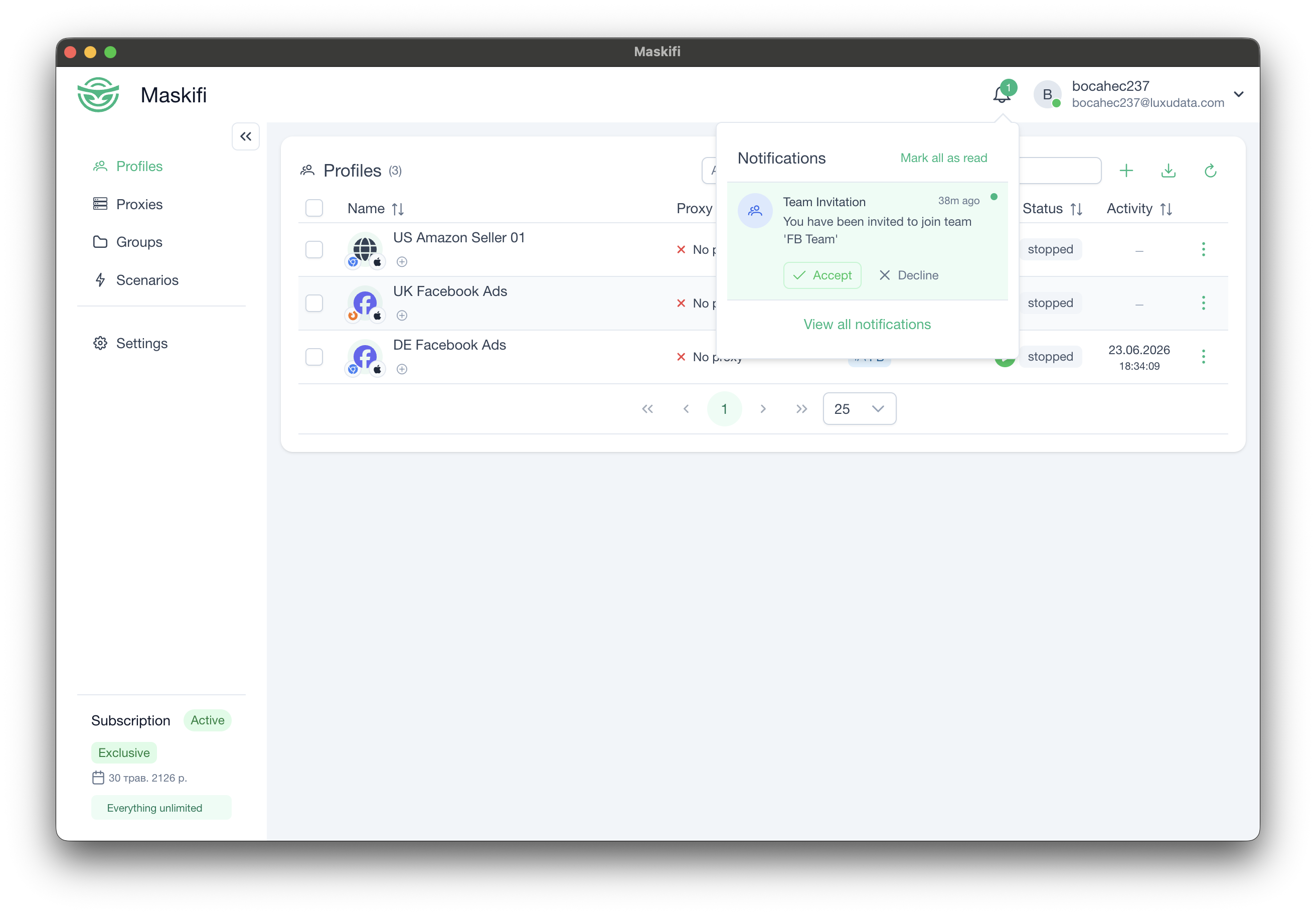
The popover shows your most recent notifications. Each notification item displays:
- A title and message.
- A timestamp.
- Action buttons where applicable (see Notification types below).
At the top of the popover, a Mark all as read button appears when there are unread items. At the bottom, a View all link opens the full Notifications view.
New notifications show a toast message in the corner of the window as they arrive, even when the bell popover is closed.
Notifications view
Navigate to the Notifications view via View all in the bell popover. It provides the complete list of notifications with pagination.
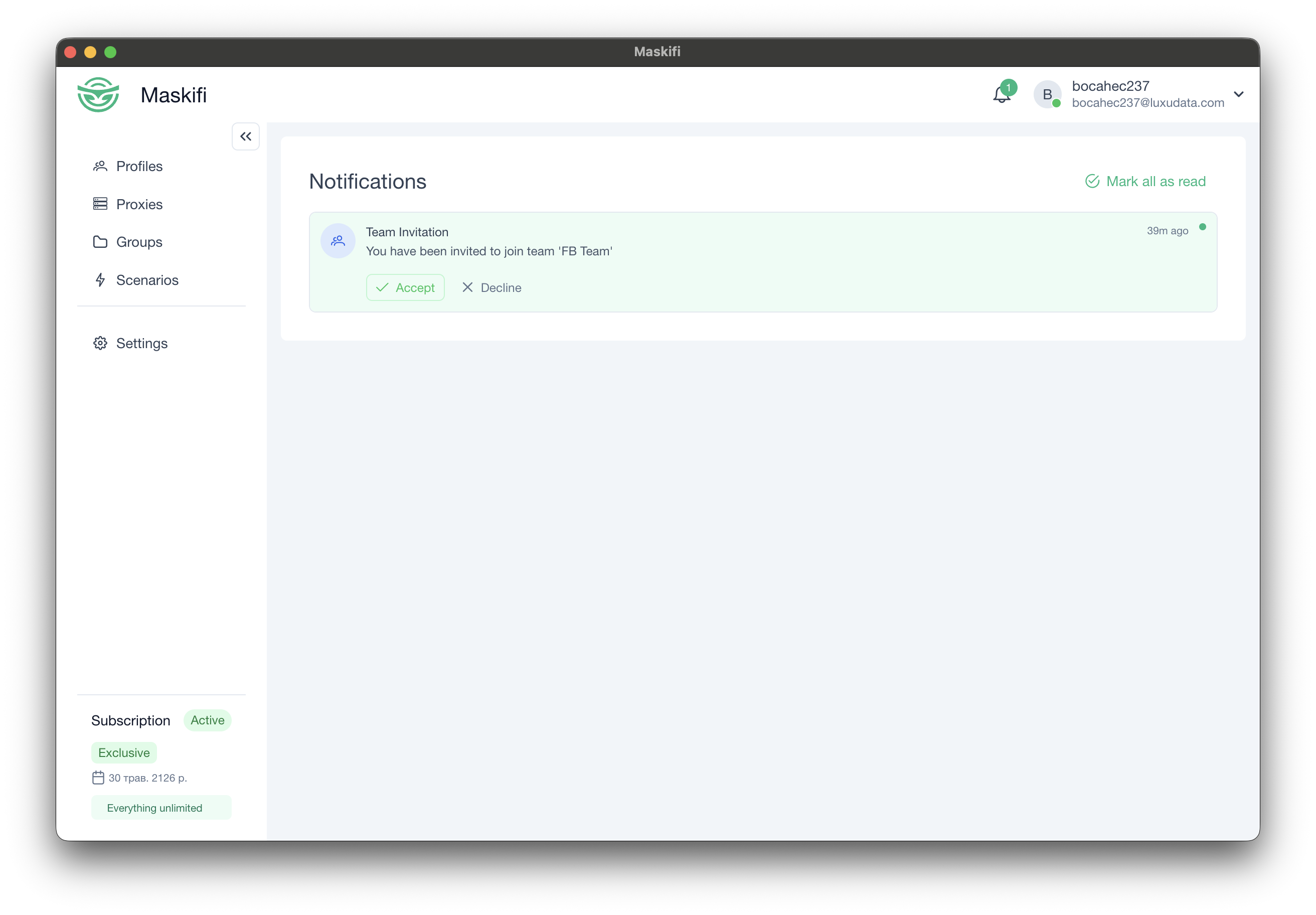
The view includes:
- A Mark all as read button (top-right, visible when there are unread items).
- A scrollable list of notification items, each showing title, message, timestamp, and any action buttons.
- A Load more button at the bottom to fetch older notifications.
Notification types
Team invitation
Sent when someone invites you to join a team.
Each invitation notification has two buttons:
- Accept — accepts the invitation. A dialog then asks whether you want to switch to the new team immediately.
- Decline — declines the invitation.
After accepting or declining, the notification is automatically marked as read.
Profile transfer
Sent when another user or team sends you one or more profiles.
Each transfer notification has two buttons:
- Accept — if you belong to more than one team, a dialog appears for you to choose which team should receive the profiles. If you only have one team, the transfer is accepted to that team automatically.
- Decline — rejects the transfer.
Marking notifications as read
- Individual: clicking the notification item's body marks it as read.
- Bulk: use Mark all as read in either the popover or the Notifications view.
Read state is synced in real time, so marking items read on one device is immediately reflected on others.