
Overview
A profile is a fully isolated browser instance with its own fingerprint, cookies, storage, and proxy. Your profile data is kept private — it is encrypted on your device and never visible to anyone else.
What a profile contains
Each profile stores:
- Fingerprint — realistic browser identity values covering OS, screen, fonts, and more.
- Engine — Firefox (Maskifox) or Chrome. Profiles use one engine at a time.
- Proxy — the outbound IP assigned to the profile.
- Group — an optional organizational label.
- Cookies and bookmarks — imported on creation or added later.
- Start URL — the page that opens when the profile launches.
- Tags and description — free-text labels for your own use.
The profiles list
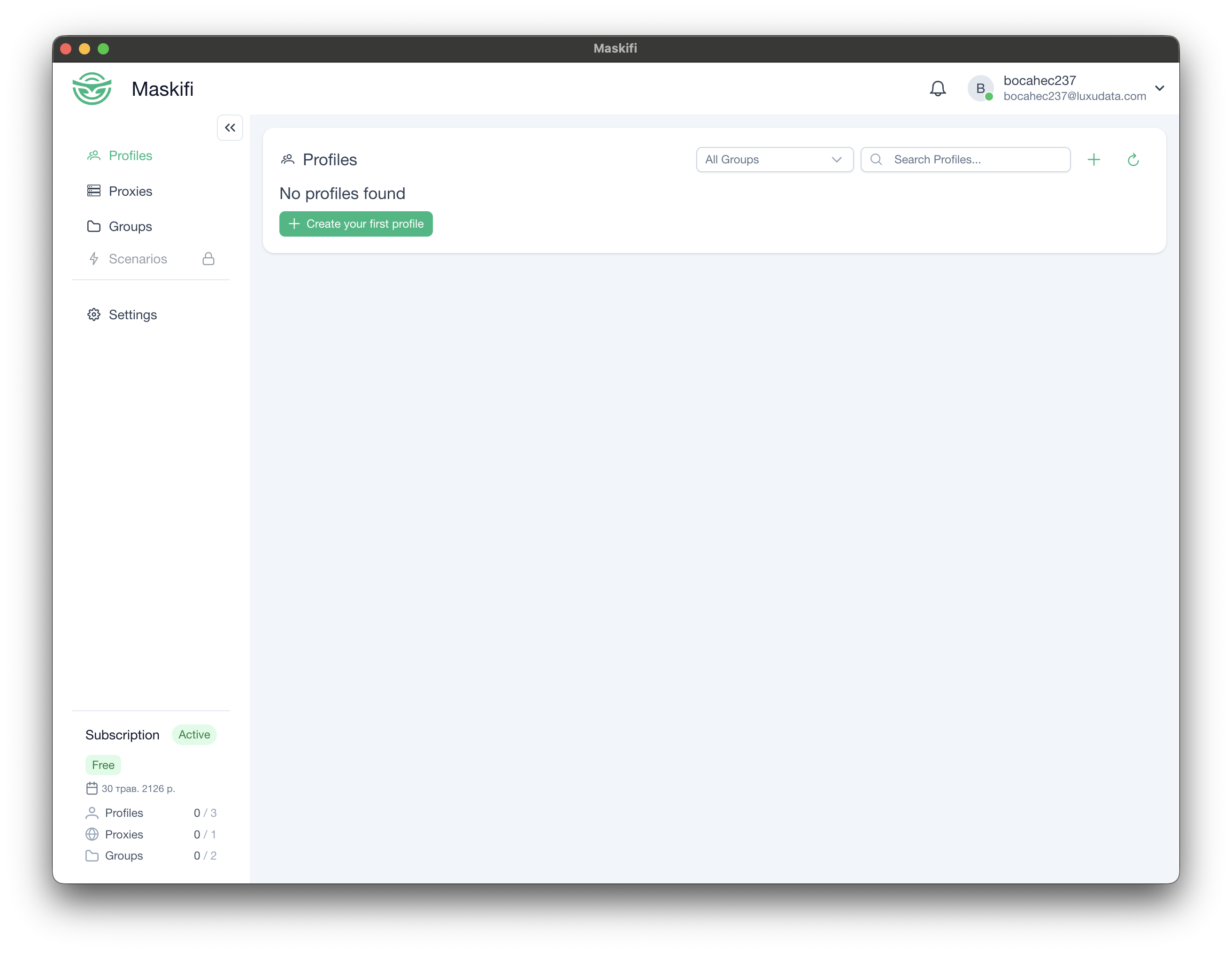
The Profiles view shows all profiles belonging to your team. From here you can:
- Search profiles by name using the search field.
- Filter by group using the group selector.
- Sort by name or last-activity column. Click the X on an active sort to clear it.
- Page through results (10 / 25 / 50 per page).
- Launch or stop a profile with the play/stop button on each row.
- Act on a single profile via the three-dot row menu (edit, import/export cookies, migrate engine, delete).
- Act on multiple profiles by selecting checkboxes, then using the bulk-action toolbar.
Profile status
A profile row reflects the current state of its browser session:
| Status | Meaning |
|---|---|
| Stopped | Not running. Ready to launch. |
| Starting | Launch in progress (syncing or connecting). |
| Active (local) | Running on this device. |
| Active (remote) | Running on another team device. |
| Stopping | Closing — data is being saved and synced. |
| Syncing | Downloading the latest saved state before launch. |
Running profiles are not selectable for bulk actions; their checkbox is disabled.
Permissions
What you can do depends on your team role. Members without the launch permission cannot start profiles. Members without edit permission cannot open the profile form or perform bulk changes. Contact your team owner to adjust roles.