
Bulk actions
Bulk actions let you operate on many profiles at once without repeating the same step per row.
Selecting profiles
- Select a single profile — click its checkbox on the left of the row.
- Select all on the current page — click the checkbox in the column header. Active (running) profiles are excluded; their checkboxes are disabled.
- Deselect all — click the header checkbox again, or use the X button in the bulk toolbar.
The selection is scoped to the current page. Changing the page or search query clears the selection.
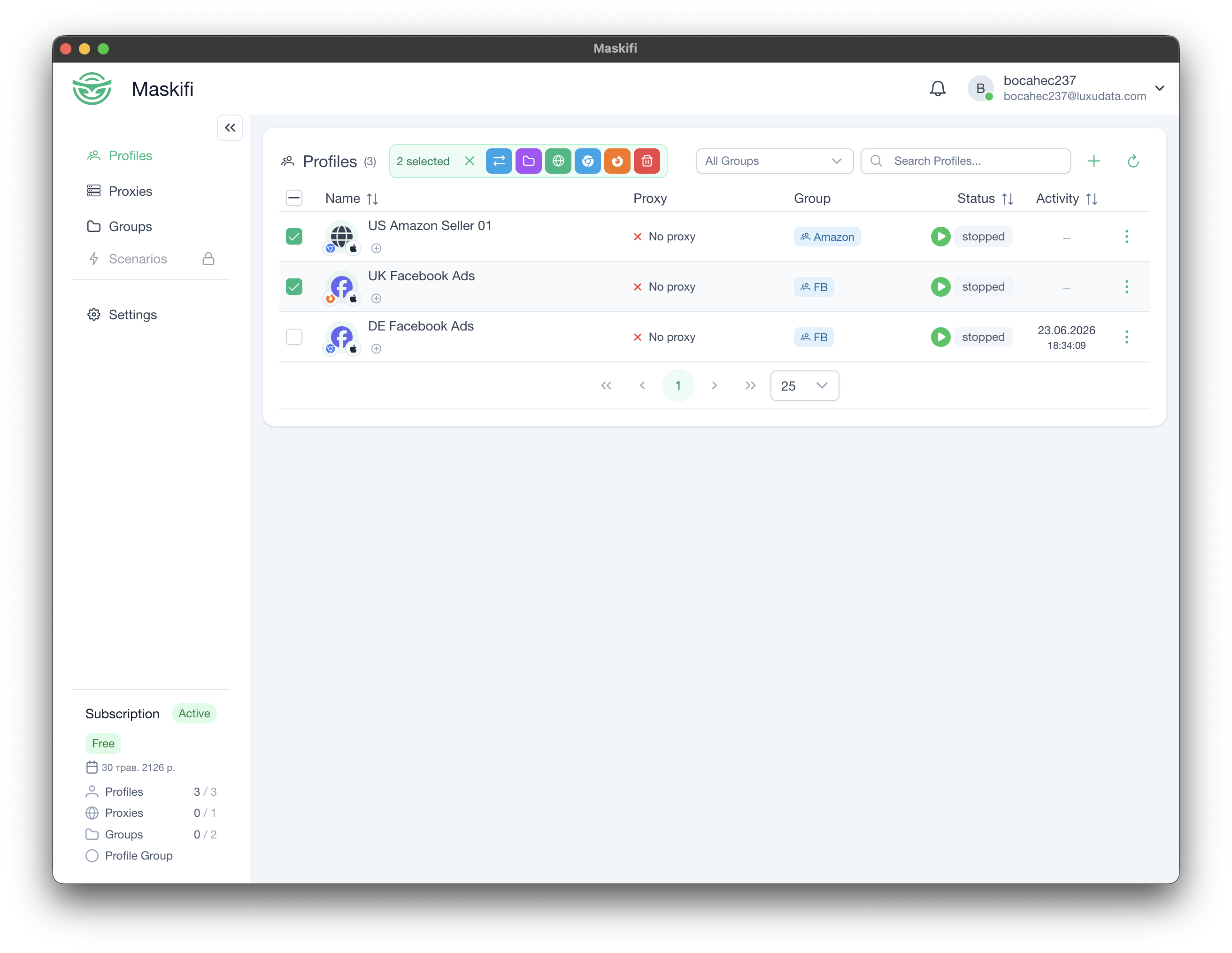
Bulk toolbar
Once one or more profiles are selected, the bulk-action toolbar appears in the page header. It shows the count of selected profiles and the available actions:
| Button | What it does |
|---|---|
| X | Clear the current selection |
| Transfer | Transfer selected profiles to another team member |
| Change group | Move selected profiles to a different group |
| Change proxy | Assign a new proxy to all selected profiles |
| Migrate to Chrome | Migrate selected Firefox profiles to the Chrome engine |
| Migrate to Firefox | Migrate selected Chrome profiles to the Firefox engine |
| Delete | Permanently delete selected profiles |
Engine migration buttons adapt to the selection:
- If all selected profiles already use Chrome, only "Migrate to Firefox" is shown.
- If all use Firefox, only "Migrate to Chrome" is shown.
- If the selection is mixed, both buttons are shown.
Transfer
The Transfer action sends the selected profiles to another team member. All selected profiles must not be running and must not have a pending transfer already in progress.
Clicking Transfer opens a dialog where you enter the recipient's email address and click Send. The recipient receives the transfer and must accept it before the profiles appear in their team. Until the recipient accepts, the transfer is shown as pending and can be cancelled by the sender.
Change group
Opens a dialog to pick a group. All selected profiles are moved to that group.
Change proxy
Opens a dialog to pick a proxy. All selected profiles are assigned that proxy.
Engine migration (bulk)
See Engine migration for what is carried over and what is not during migration.
The migration runs sequentially per profile and reports progress. When it finishes:
- A success toast shows how many profiles migrated.
- If some profiles failed, a warning toast lists the reasons grouped by error type.
Profiles that are active on another device are skipped automatically and a warning names them.
Delete
Opens a confirmation dialog. Confirming permanently deletes all selected profiles. This cannot be undone.
After deletion the list reloads and, if the current page would be empty, the view returns to the last non-empty page.