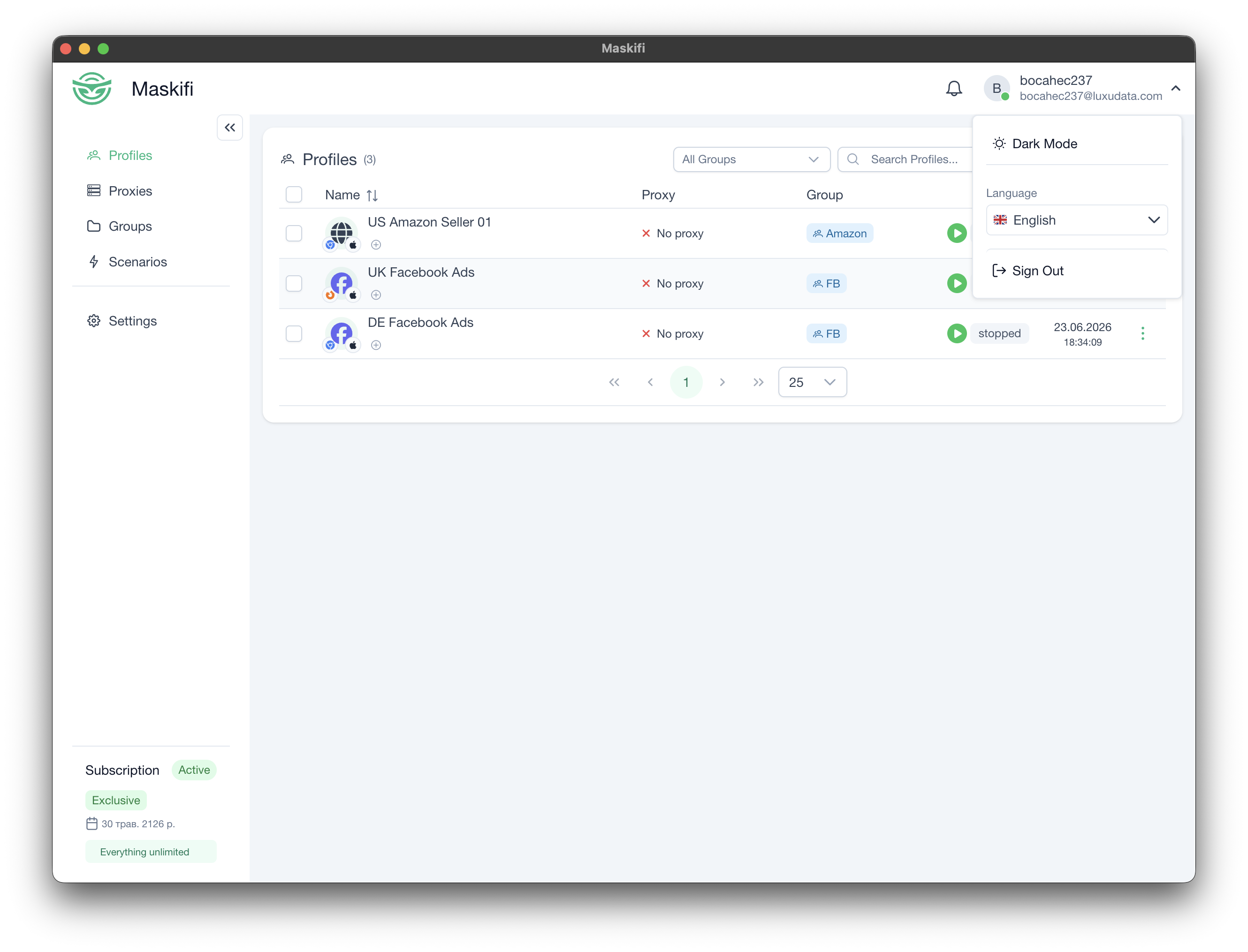
App layout
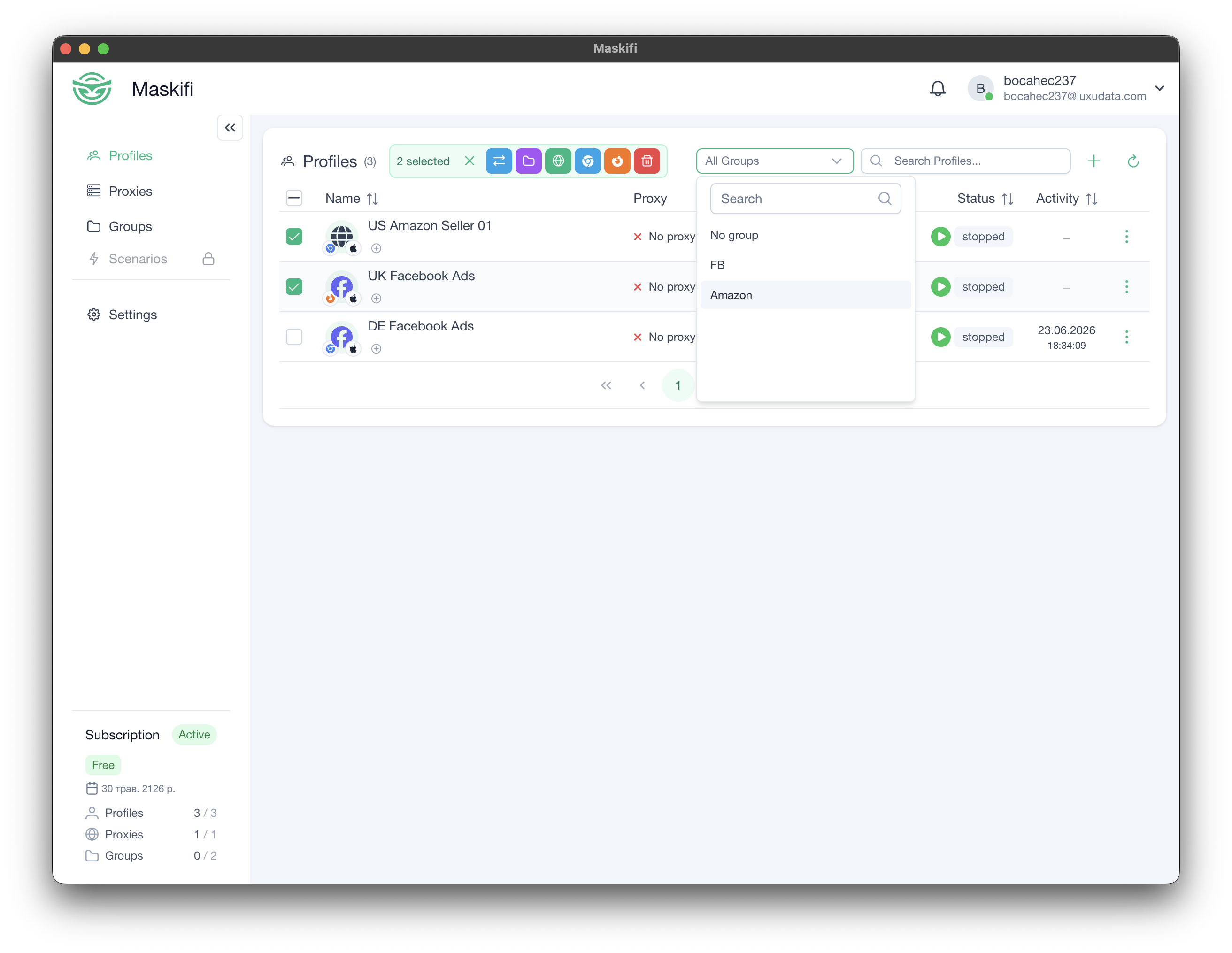
Maskifi's window is divided into three zones: a collapsible sidebar on the left, a top bar across the top, and the main content area in the center. This page walks through each zone so you know where to find everything.
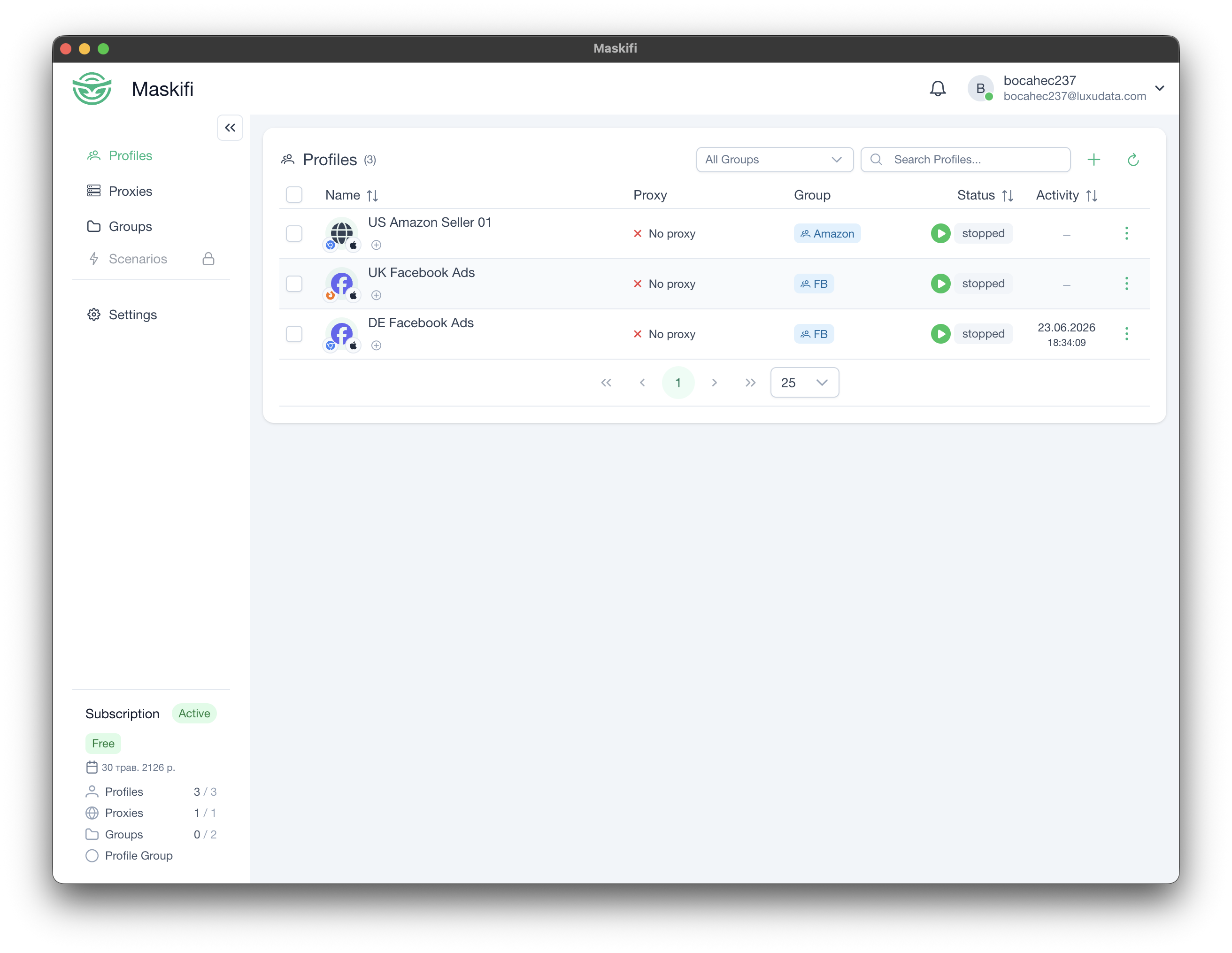
Sidebar
The sidebar holds the primary navigation. It contains four items:
| Item | Where it takes you |
|---|---|
| Profiles | The main profiles table (the default view) |
| Proxies | Proxy management |
| Groups | Profile group management (plan-gated) |
| Scenarios | Automation scenario builder (plan-gated) |
Below the navigation links, a Settings item sits separated by a divider at the bottom of the sidebar.
Items marked as plan-gated show a lock icon when your current plan does not include that feature. Clicking them prompts you to upgrade.
Collapsing and expanding the sidebar
A small arrow button («) appears in the top-right corner of the sidebar. Click it to collapse the sidebar so only icons remain — useful on smaller screens. When collapsed, a mirror button (») appears at the left edge of the window to restore it.
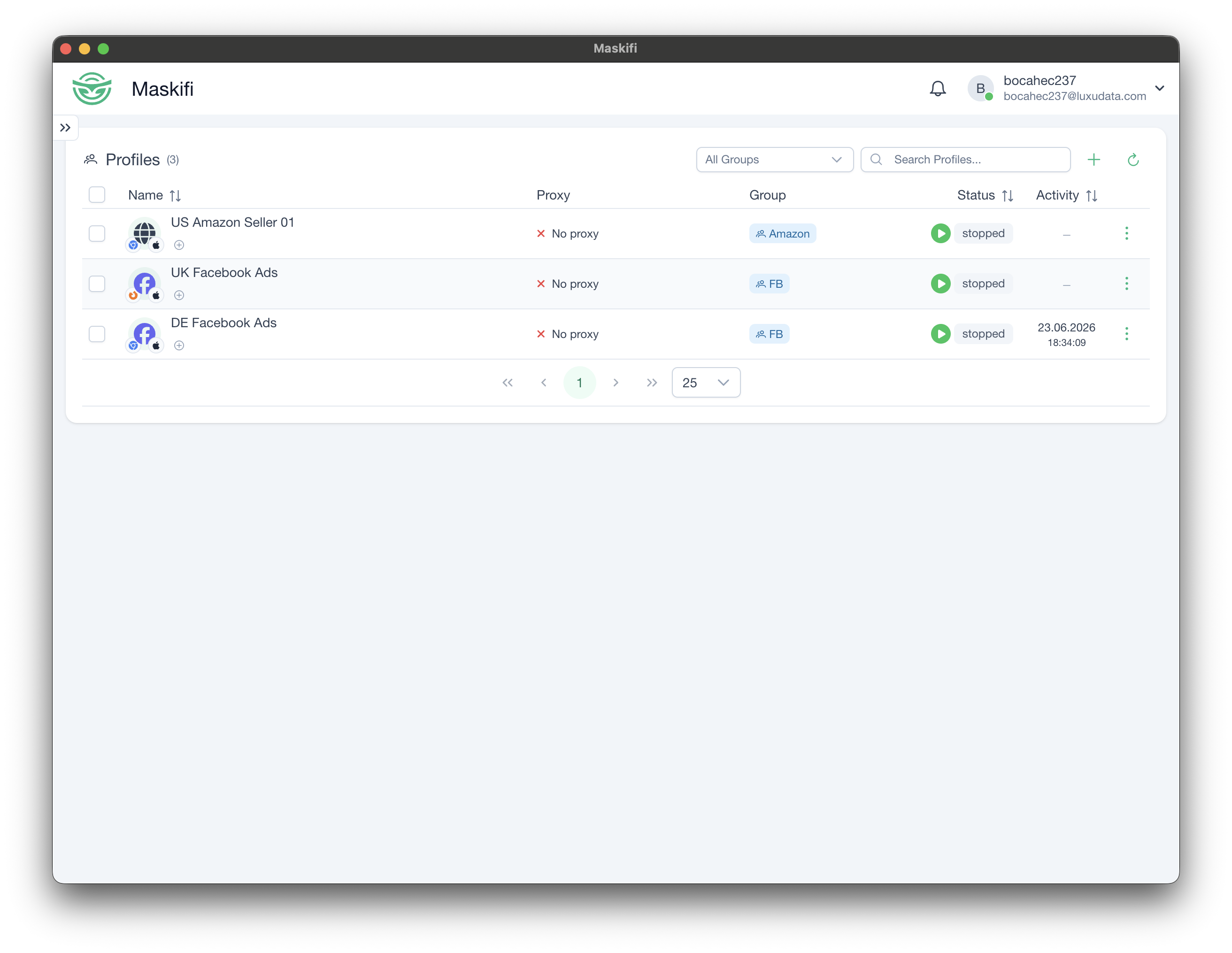
Top bar
The top bar spans the full width and contains, from left to right:
- Maskifi logo and name — clicking it has no action; it is a visual anchor.
- Team Switcher — a dropdown to switch between your personal workspace and any teams you belong to.
- Transfer notifications — a dedicated icon for incoming profile transfer requests.
- Notification bell — shows a badge with the count of unread notifications. Clicking it opens a popover with your most recent notifications and a "View all" link to the full Notifications view.
- User profile area — displays your avatar (or initials) and username. A small colored dot on the avatar indicates the connection status: green means you are connected, red means you are not. Clicking this area opens the user profile menu.
Update banners
When an app update or a browser core (Maskifox / ChromeMask) update is available and downloading, a banner appears at the bottom-center of the window above all other content. The banner shows download progress and a restart prompt once complete.
Profiles table (main content area)
The largest part of the window is the main content area, rendered by the currently active route. The default view is the profiles table, reached via the Profiles sidebar link.
The profiles table provides:
- A search bar for filtering by name.
- A group filter dropdown (plan-gated) to show only profiles belonging to a selected group. An "All Groups" placeholder clears the filter; a "No group" option filters to profiles with no group assigned.
- Toolbar buttons for creating a new profile and refreshing the list.
- A paginated data table with columns for name, proxy, group, status, and action menus.
- Bulk action bar — when one or more profiles are checked, a bar appears with quick-action buttons: clear selection, transfer, change group, change proxy, and engine migration.
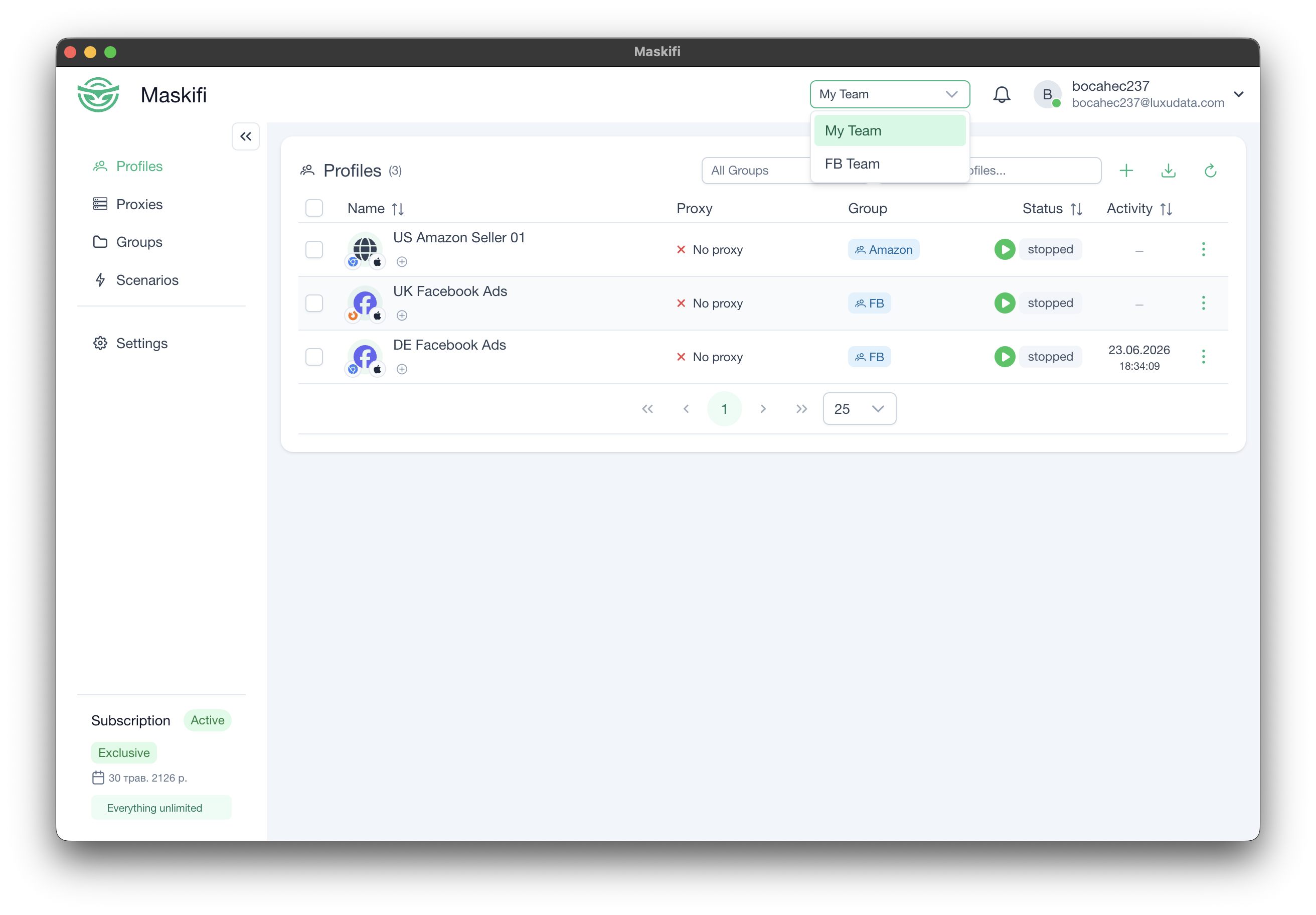
User profile menu
Click your name or avatar in the top bar to open the user profile menu. It contains:
- Theme toggle — cycles through Light, Dark, and System (follows OS) modes. The current mode is shown by an icon (sun / moon / monitor).
- Language selector — a dropdown to switch the app interface between English and Ukrainian. The change takes effect immediately without restarting.
- Help — opens the Maskifi documentation site in your default browser. The link automatically opens the documentation in the language you currently have selected in the app.
- Sign out — closes all open browser profiles and logs you out.