
Importing profiles
Profile import lets you create many profiles at once by uploading a CSV file.
Before you start
- Import is available on specific subscription plans. If the import button is not visible in the toolbar, your current plan does not include it.
- You must have the create profiles team permission.
How to import
- In the Profiles view, click the download/import button in the top-right toolbar (next to the + button).
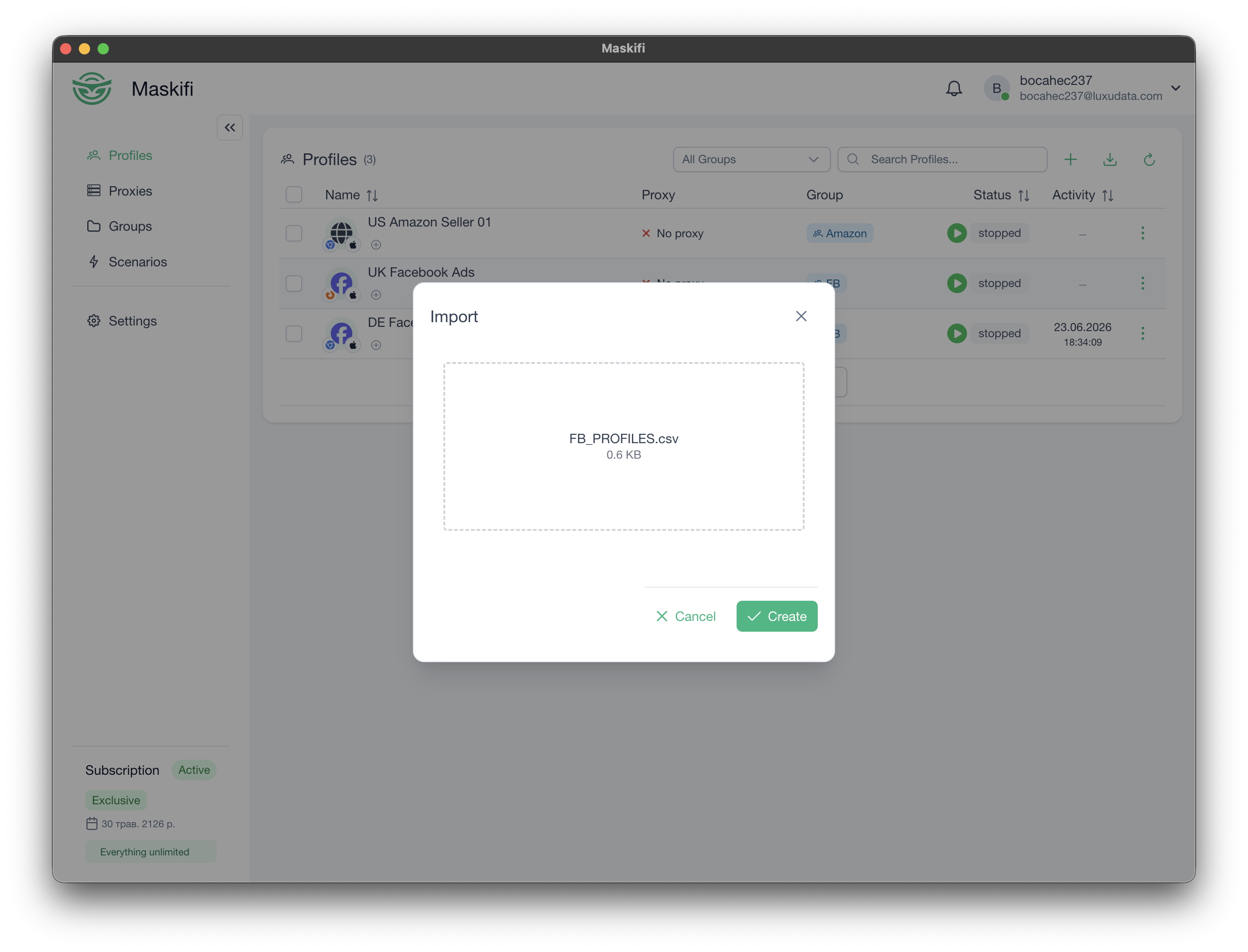
- The import dialog opens.
- Drag a CSV file into the drop zone, or click the zone to open a file picker.
- The file must be
.csvand no larger than 10 MB. - Click Import (or the submit button).
Maskifi uploads and processes the file. The dialog closes immediately. When processing completes:
- A success notification appears and the profiles list refreshes.
- If there is an error, a notification appears with the detail.
CSV format
Use a file matching the format your team uses. To get a sample, export an existing profile first and use that file as a reference.
Limits
- Maximum file size: 10 MB.
- Only
.csvfiles are accepted. - The number of profiles you can create is subject to your subscription's profile limit. If the import would exceed your limit, the excess rows will not be created.